START HERE
What is a zombie couple video?
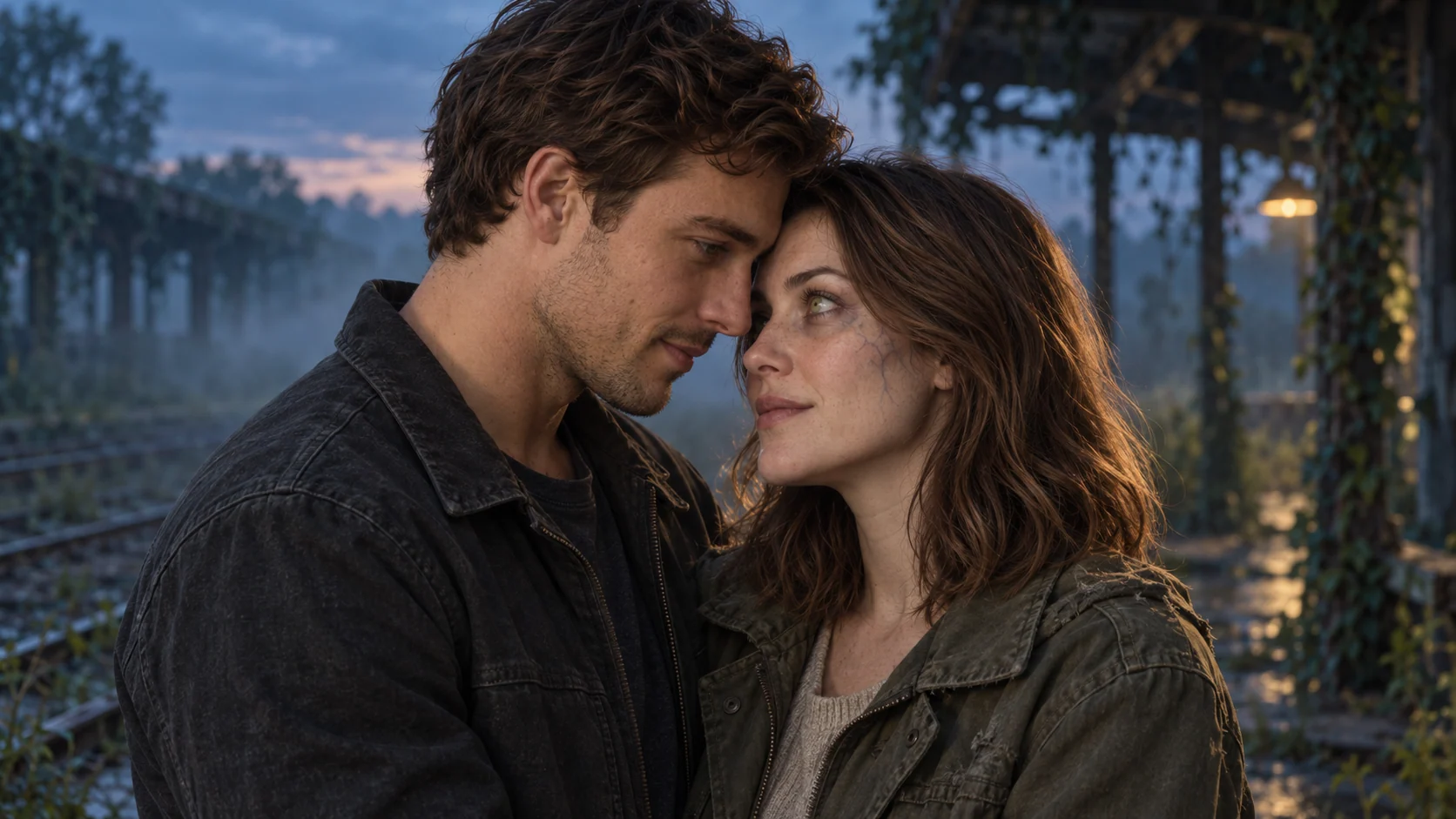
A zombie couple video is a fictional AI love story built around recognition: one partner is infected, the other still sees the person they love. A gentle embrace leads into a warmer memory of the same couple, both healthy.
Choose two clear adult portraits → assign one survivor and one infected partner → generate the reunion → create the sunny memory → cut between matching embraces. Use a model that supports two identity references, or prepare a shared image of both characters before animating.
This guide uses a non-graphic, empty-handed version. The emotional decision happens through expression and touch, so there is no weapon choreography to fit into a short clip.
The prompts below are original production briefs, not a guarantee of a particular result. Our comparison is based on the linked official documentation, not a hands-on speed or quality benchmark. We also make the Zombie Couple AI creator linked on this page.
CHOOSE THE JOB, THEN THE TOOL
Which workflow fits your story?
A generator makes the footage; an editor gives you control of the cut. You may need both. Check the selected model’s image inputs and clip length before paying for a generation.
| Tool | Where it fits | Reference approach | Watch for |
|---|---|---|---|
| PixVerse ↗ | Direct a reference-based scene | Image-to-video from a shared scene still; check multi-reference availability | Use the reference labels shown by the model. Split scenes if the cut drifts. |
| Media.io ↗ | Explore a guided zombie story workflow | Multiple references on a compatible model; otherwise a shared scene still | Input count, audio and duration depend on the chosen model. |
| CapCut ↗ | Assemble reunion + memory; trim and add audio | Import the clips or stills you created | An editing template is not automatically a two-person identity generator. |
| Zombie Couple AI Our creator | Generate a new video from two uploaded photos | Two image references assigned to survivor and infected-partner roles | Fixed 15s / 9:16 / 720p brief; results still need review. |
Sources: PixVerse character guide · Media.io story guide · CapCut story guide. Feature access and pricing can change; check each tool before purchase.
THE FOUR-BEAT METHOD
Build the emotion before the effects.
Cast two distinct people.
Use sharp, evenly lit portraits with the whole face visible. Give each person an unambiguous role: A is the survivor; B is infected. Keep A left and B right in the first composition. Distinct clothing colors help you notice a misassigned role.
Make one restrained reunion.
Start two steps apart. Ask for recognition, an open hand, then a gentle embrace. For the infected partner, change complexion and eyes while preserving facial structure. Keep the survivor’s skin healthy. Avoid combining running, spinning, crying, falling and hugging in the same short shot.
Plan the memory as its own scene.
Repeat camera height, body scale and screen positions in the sunny scene. Both partners are healthy there. A hard cut communicates a jump in time more clearly than asking the skin to transform during the hug. If one generation blurs this distinction, make the two scenes separately.
Review, cut and download.
Inspect both faces at the beginning, the embrace and the final frame. In an editor, cut as the arms settle; trim the memory so the hug continues in the same direction. Add audio you have permission to use. Watch once with the sound off: the story should still make sense.

COPY IT. CHANGE IT. DIRECT IT.
Your zombie love story prompt.
Use the complete brief with a model that accepts both portrait references. If your model uses different reference names, replace @Image1 and @Image2 with its actual labels. For single-image animation, use the two-scene briefs after preparing a shared still.
Our directing choice: a hard cut, not a transformation. If the sunny shot looks like the infection disappears in real time, remove any “turns healthy” language. Ask for a separate earlier scene and repeat the embrace pose. You can also use a brief pause in the edit to signal the memory.
THREE WAYS TO GET THERE
Use each tool for the right moment.
PixVerse · direct the scene
The official PixVerse V6 guide describes using an image as the starting frame and repeating identity details. For a couple, prepare a shared still containing both people when only one image input is available.
- Open the Video section and select V6 or another suitable model. Upload the shared scene as the starting image; use separate portraits only if that workflow supports multiple references.
- Assign the survivor and infected roles in the prompt. Keep the same character labels throughout.
- Choose a supported duration and aspect ratio. Try the reunion by itself if the full sequence loses a face or skips a beat.
- Build the warm scene separately if needed, then assemble the two clips in an editor.
Media.io · follow a story workflow
Media.io has a dedicated zombie love story guide. It distinguishes multi-reference models from single-image animation; don’t assume every model accepts two portraits.
- Open the story guide and follow its creation entry point.
- Select a model with the required references. If there is only one image input, first prepare a shared scene containing both people.
- Adapt the story brief to the available clip length. Keep the reunion and the earlier memory separate when necessary.
- Preview both identities and the cut before downloading the result.
CapCut · make the cut land
Use CapCut to arrange the footage you have generated. Its official story guide emphasizes checking continuity and trimming the reveal. Treat any AI or template workflow as a separate feature whose inputs need checking.
- Import the accepted reunion and memory clips into a vertical project.
- Place the darker reunion first. Find a frame where the embrace has settled.
- Trim the sunny memory to a compatible pose and place it immediately after that frame. Start with a straight cut.
- Adjust pauses, add permitted audio and export. Check the first and last frames on a phone-sized preview.
BEFORE YOU SPEND ANOTHER CREDIT
Find the failure. Change one thing.
Character appearance becomes inconsistent.
Use fixed A/B roles and repeat the screen positions. Remove pronouns that could refer to either person. Reduce camera movement and check the starting composition.
“A stays on screen left; B stays on screen right. Never exchange identities.”Both become zombies.
Separate healthy identity from makeup. Attach the infection instruction only to B, and repeat that A keeps natural skin and clear eyes.
“Only B has zombie makeup in the present. A is healthy in every shot.”The hug looks tangled.
Shorten the approach. Avoid spinning or lifting. Keep hands visible until contact, then use a simple shoulder-level embrace or cut earlier.
“Two slow steps, a gentle embrace; distinct bodies, natural arm placement.”The memory looks like a cure.
Generate it separately. Match pose and camera, then cut in the editor. Keep the infected appearance until the last frame of the dark scene.
“End with B still infected. The next shot is an earlier memory.”These are troubleshooting suggestions, not guaranteed fixes. Review one short scene before committing to a large batch.
A FEW THINGS TO KNOW
Questions, answered.
Can I make a zombie couple video from two separate photos?+
Yes, with a model that supports multiple identity references. A single-image model needs a shared scene still containing both characters first. Two upload boxes alone do not guarantee consistent faces; inspect the result.
Do I need a gun in the prompt?+
No. Our version communicates hesitation through facial expression and empty hands. The central story is recognition, a gentle embrace and an earlier happy memory.
Can one prompt produce the entire 15 seconds?+
It can be attempted with a model that supports that duration and multiple shots. If the cast or timeline drifts, create the reunion and memory separately and edit the cut yourself.
Are these tools free?+
We do not promise free generations. Check the current credit rules, export limits and pricing inside each service. Our creator offers one-time packs starting at $6.99 for one generation.
How long do you keep my finished film?+
Our hosted creator makes the film available for 7 days after completion, then deletes its stored copy. Please download promptly. This does not describe the retention policies of PixVerse, Media.io, CapCut or our generation provider.
YOUR CAST. YOUR STORY.
Give the reunion
two familiar faces.
Use the prepared story, or bring your own director’s notes.
Create your zombie couple video ↗See one-time packs